
From late 2020, Workspace ONE has been able to provide device posture information to Entra ID (formally Azure Active Directory (AD)) so it can be used as part Entra ID’s powerful Conditional Access capabilities.
The purpose of this article was revalidate this integration for one of my customers (since this capability has been available for over a year now) which I’ve documented in this article.
This blog article references the following two excellent sources of information:
- Workspace One UEM 3rd party compliance integration – Microsoft Graph API by Sacha Warno. Sacha kindly tested and documented this capability when this service first became available.
- Use Compliance Data in Azure AD Conditional Access Policies (Omnissa official documentation)
The following diagram details the data flow of how this works. Taken from this announcement blog article.

Prerequisites
- Workspace ONE UEM 2010 or higher
- Navigate to Monitor > Intelligence, select the Opt-in box, and complete the process. For more information, see VMware Workspace ONE Intelligence documentation. You do not need the VMware Workspace ONE Intelligence license to enable the integration.
- For iOS, Android, and Windows devices, require Workspace ONE Intelligent Hub 20.3 and later.
- For macOS, require Workspace ONE Intelligent Hub 21.11 and later.
- Require a valid subscription to Microsoft Intune. Assign the Microsoft Intune licenses to users supported by this integration. For more information, see the Microsoft subscription.
Integrating Workspace ONE UEM with Entra ID
The following Omnissa Techzone tutorial provides all the instructions you need to integrate Workspace ONE UEM and Entra ID. A few things to point out when setting up this integration.
For Workspace ONE UEM shared SaaS environments, the AirWatch by VMware Application is all that you’ll need to enable in Azure AD. As noted in the article, generally you need to add the on-premises app only if you have a custom host name. This means you have a dedicated SaaS or on-premises. However, adding the app causes no harm to your setup. It also enables you to avoid the need to troubleshoot Azure enrollment errors when enrolling devices.
The MDM discovery URL and MDM Terms of Use URL are transposed between UEM and Azure AD (see below from my lab). Just so you’re aware!

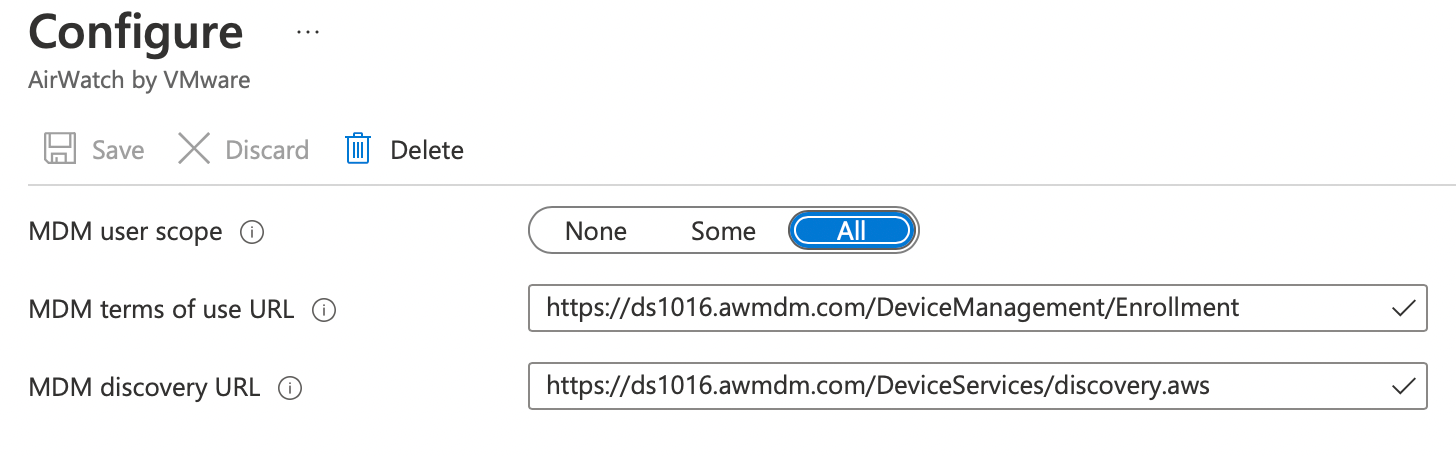
Below is a screen capture from my lab where I’ve highlighted the items I configured:

Whilst you’re in the Azure AD portal, you may wish to apply some branding of your tenant so that users are prompted with a personalised message when they enrol their device. Select Company Branding and edit the Default Locale as shown:

Enabling Partner Compliance Management in Microsoft Endpoint Manager
- Sign in to Microsoft Endpoint Manager admin center
- Go to Tenant Administration > Connectors and Tokens > Partner Compliance management > Add Compliance Partner.
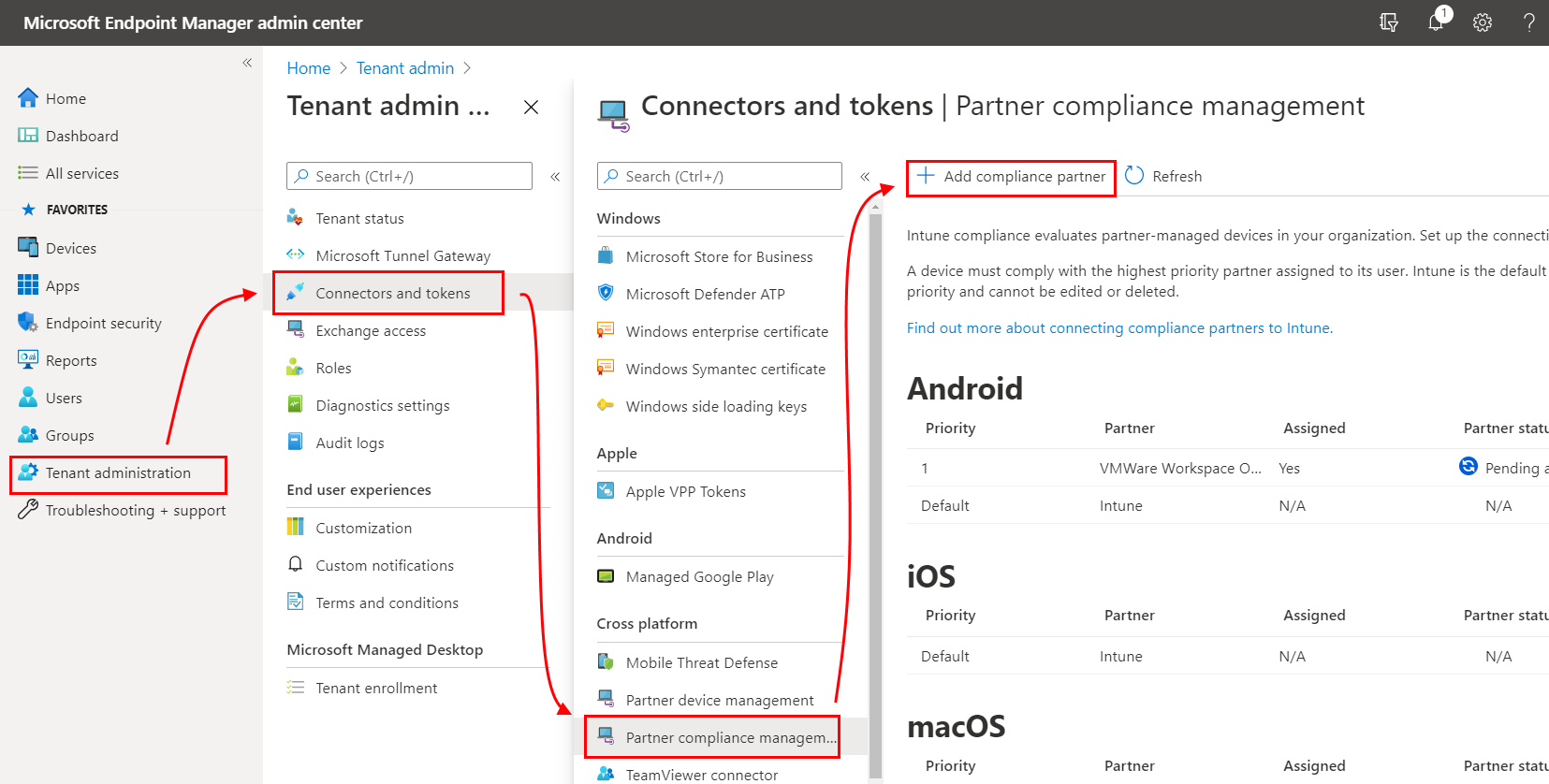
3. Select VMware Workspace ONE Conditional Access and your required platform as shown:
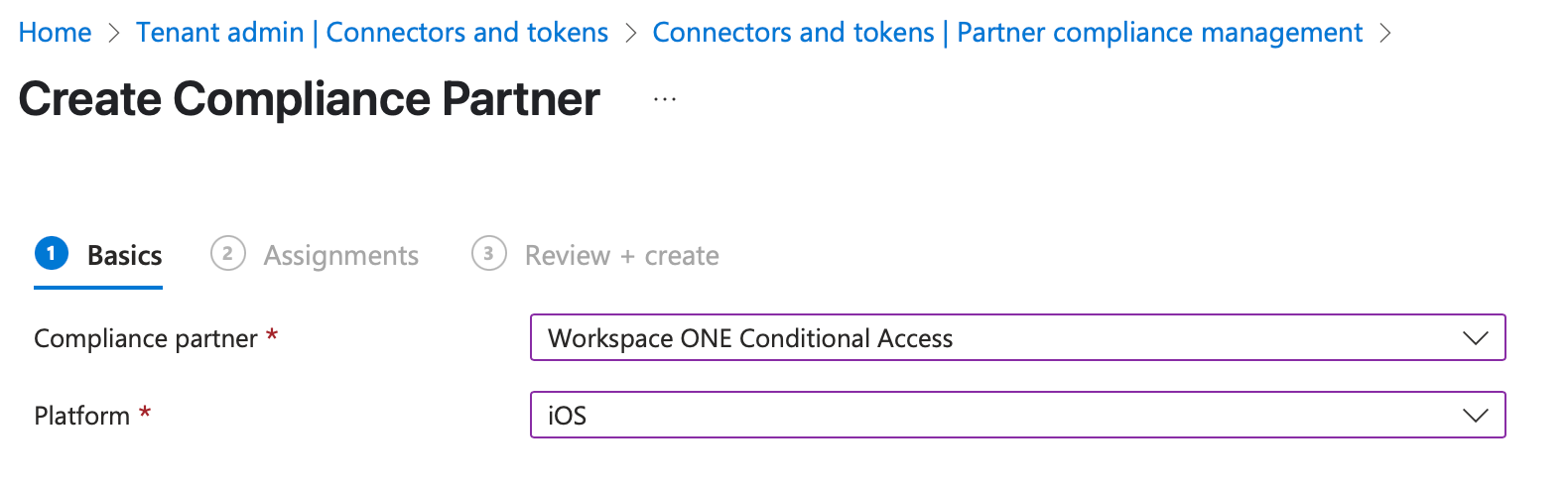
4. Click Next
5. Add the required Azure AD group or select Add all Users and click Next
6. Review the final settings and click Create
7. Repeat the above process for other platforms as required. ie. Android, macOS.
8. The Partner compliance management should look similar to the following:

Note: Noticed how the Partner status is in a Pending activation state. That’s ok for now.
Enabling compliance data in Azure from Workspace ONE UEM
- In the Workspace ONE UEM console, navigate to Groups & Settings > All Settings > System > Enterprise Integration > Directory Services.
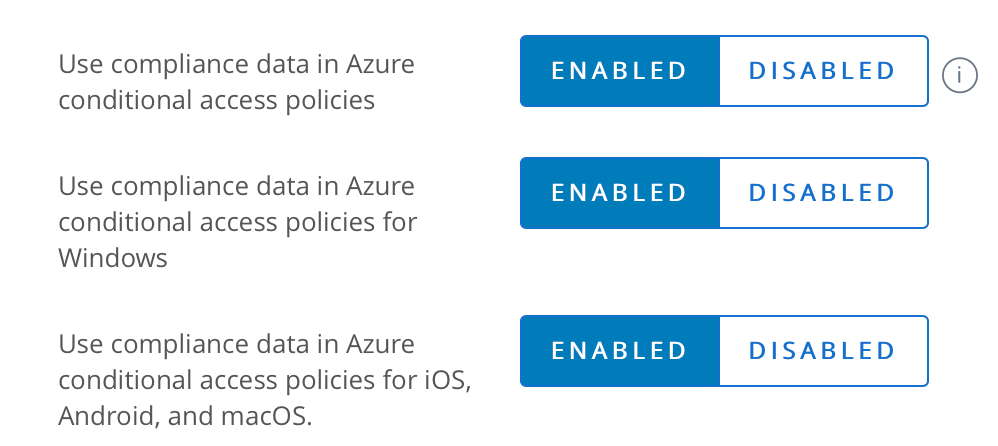
- Enable Use Compliance Data in Azure conditional access policies.
Note: This setting is visible only for a customer OG. Child OGs inherit this setting but is not visible in the user interface.
- For Windows: Enable Use compliance Data in Azure for conditional access policies for Windows.
- For iOS, Android, and macOS: Enable Use compliance data in Azure conditional access policies for iOS, android and macOS. See the following:
5. Workspace ONE UEM performs a validation. After accepting permissions, a pop-up box displays. Click Proceed and login to Azure AD if required.

6. Click Accept to review and enable this integration.

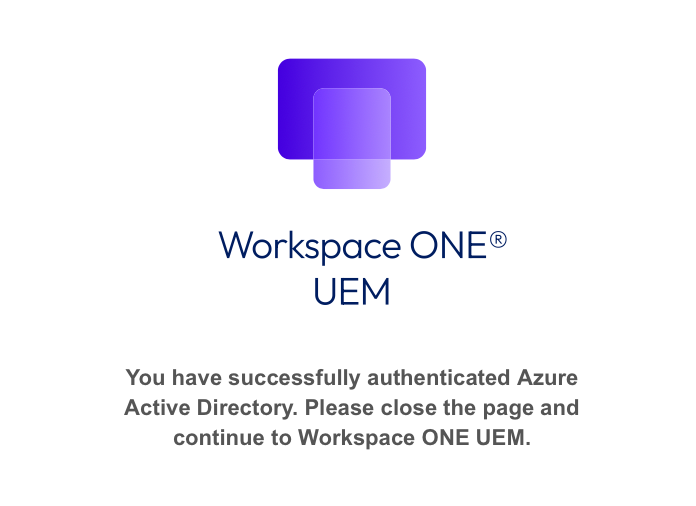
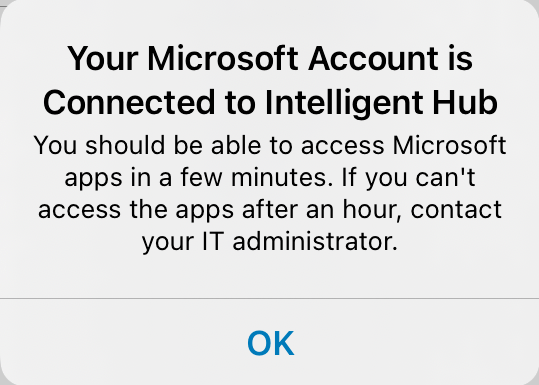
7. You will be shown the following message when the integration has been activated.
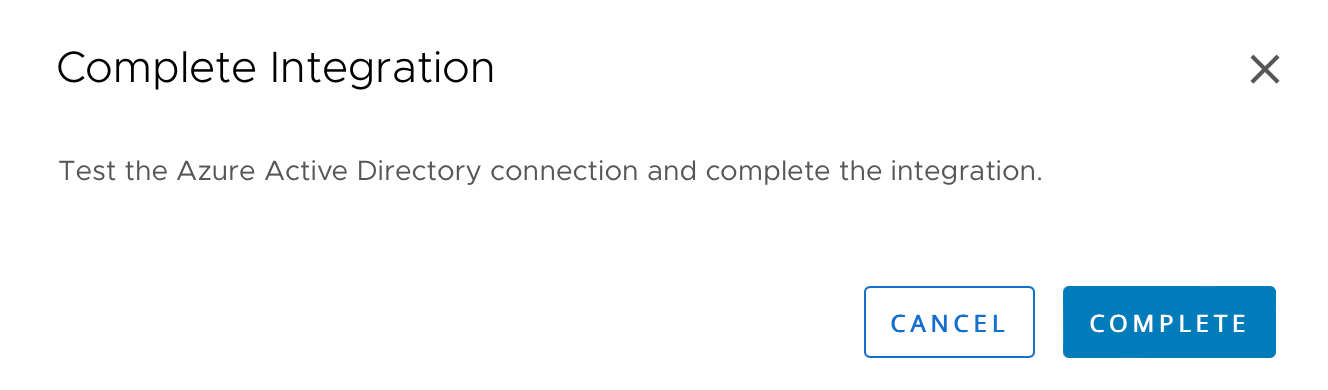
8. Within the UEM console, click Complete
9. You should then see the following options within your UEM console:

If you return to the Partner compliance management screen and note the Partner status is now Active as shown for each device type:

Registering your devices to Entra ID
Windows
Windows OOBE/Autopilot devices are automatically registered to Entra ID. So no additional steps are required so that their compliance information is synchronised between Workspace ONE UEM and Azure AD.
iOS, iPadOS
Microsoft Authenticator is required on your iOS and iPadOS devices for this capability to work. The Microsoft Authenticator app on the device is used to register an AAD device object.
Therefore, you can use Workspace ONE UEM to deploy this application automatically to all of your mobile devices.
Sacha in his blog article details how you can send out a registration link to your end users, so it’s a nice end user experience (rather than just enabling Conditional Access below). At the time of Sacha writing his blog article, Hub notifications couldn’t include custom URL scheme to start apps, however this is now possible.
Within Omnissa Connect, select Hub Services

Within Hub Configuration, select Launch

Select Notifications – New and Create Notification
Enter a Name such as Mobile AAD Registration (or something user friendly for your staff). Then select Target Audience Type to Platform. Then select iOS and Android as shown.

Click Next. Enter detail as follows:

Scroll down to Links and enter the following details:
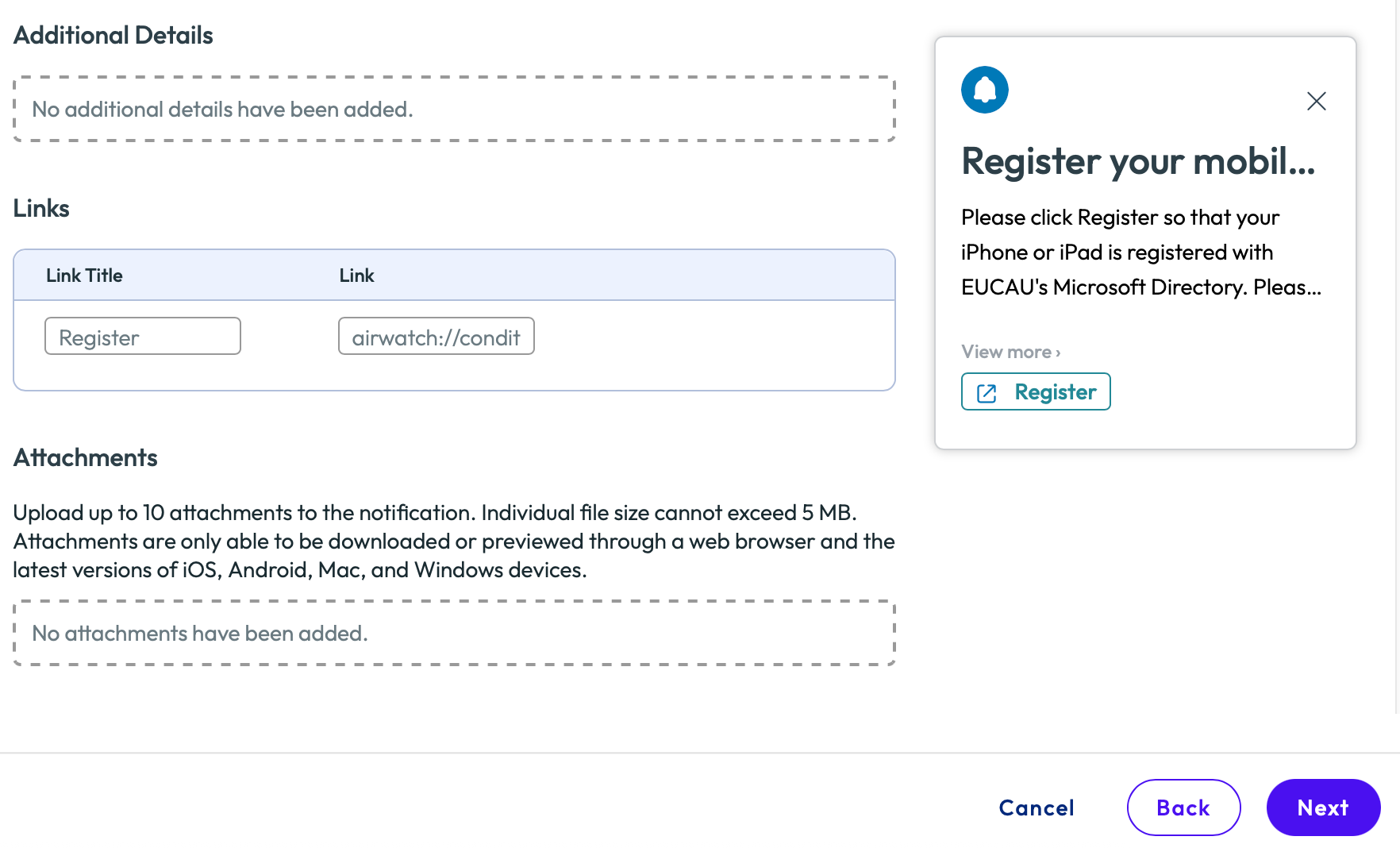
Specify Link as the following for iPhone and iPad devices:
airwatch://conditionalaccess?partner=microsoft
Click Next then click Create.
The Informational Notification will be sent to all Apple devices as shown:

Your users will be notified and within the Hub application under the For You tab, will see the following:
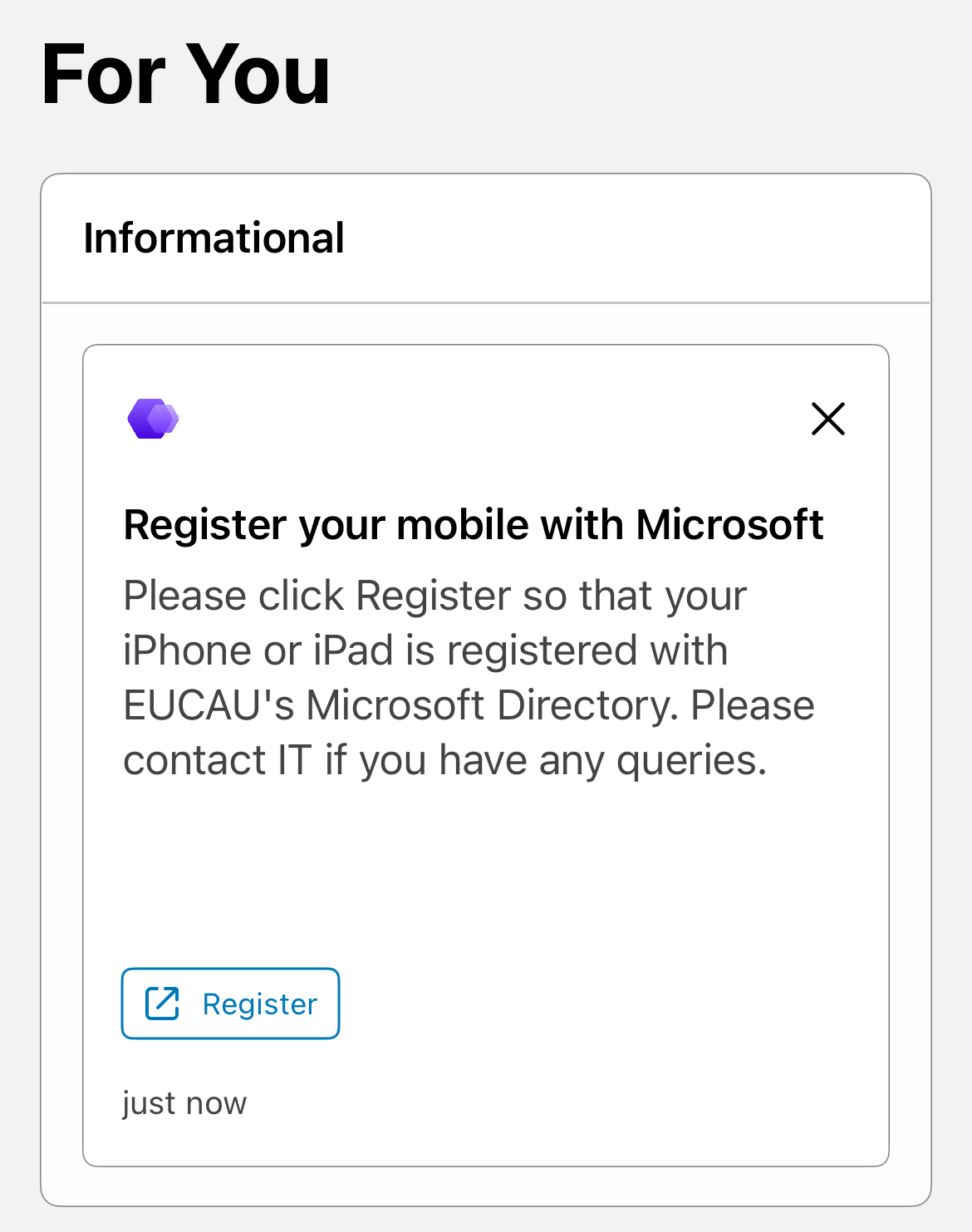
When users click Register, it will take them through the steps to register their device with Entra ID (the user will need to sign into Entra ID once if they haven’t done so already). The user experience is shown as follows:
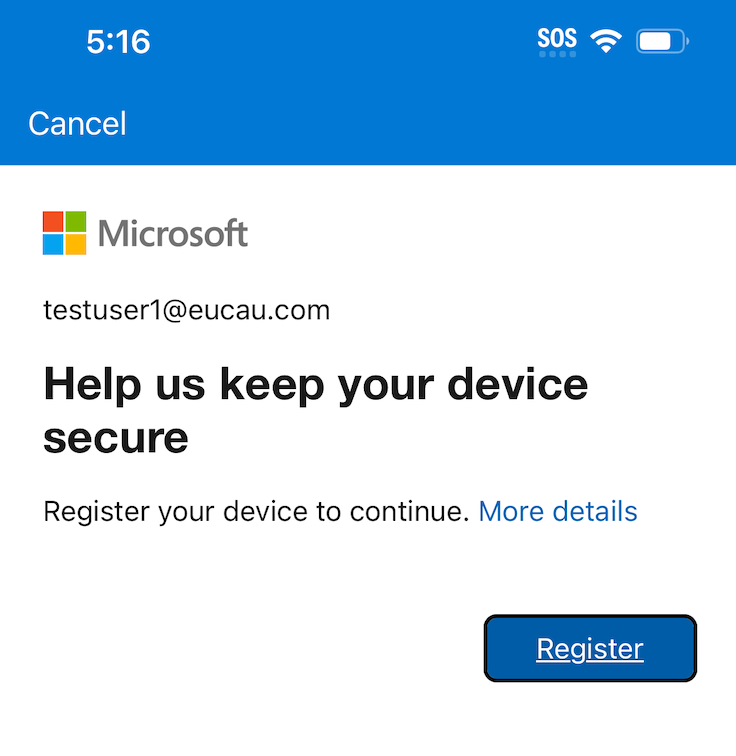

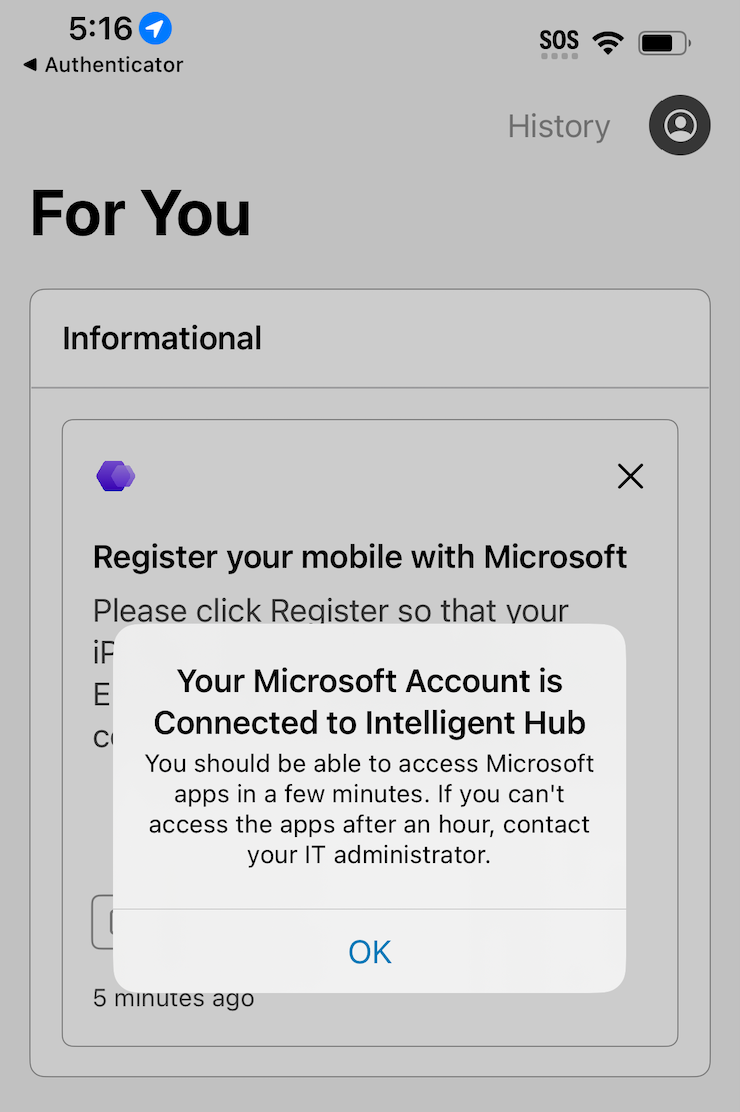
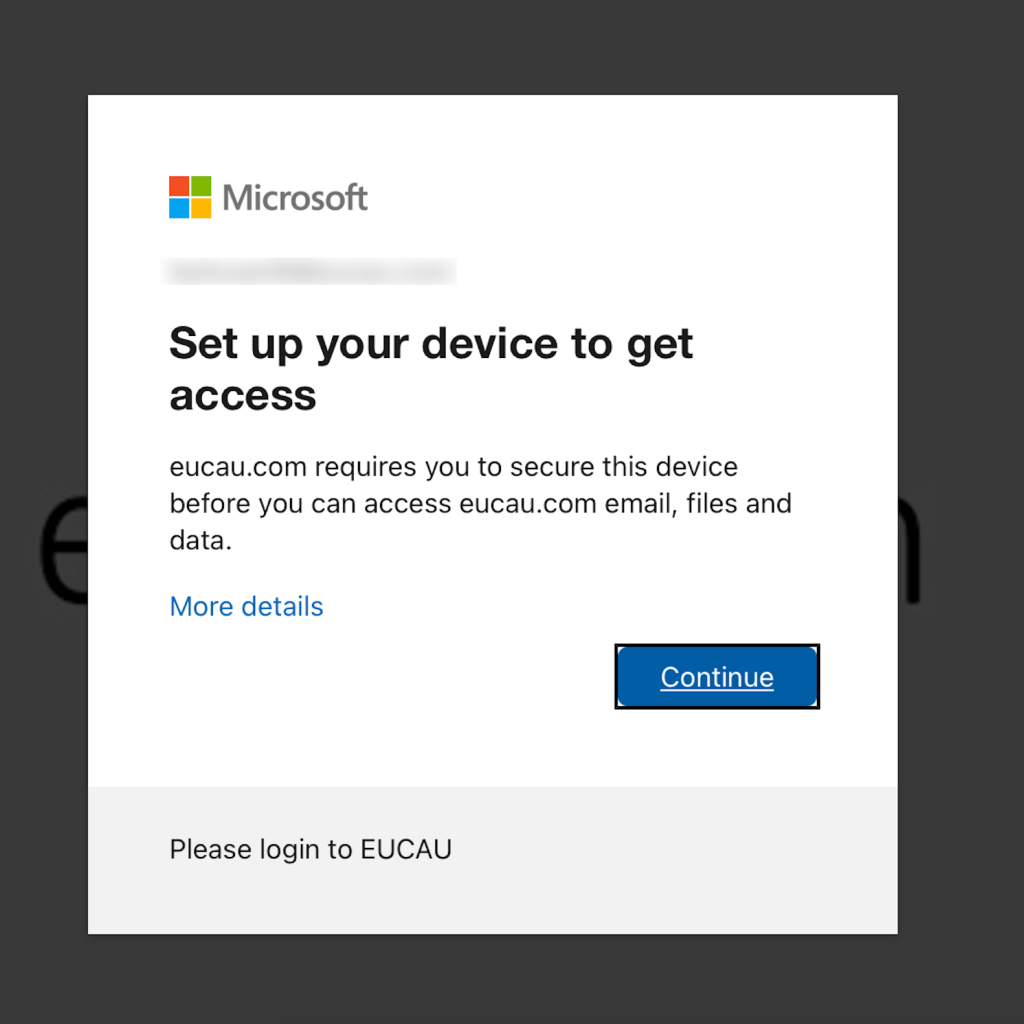
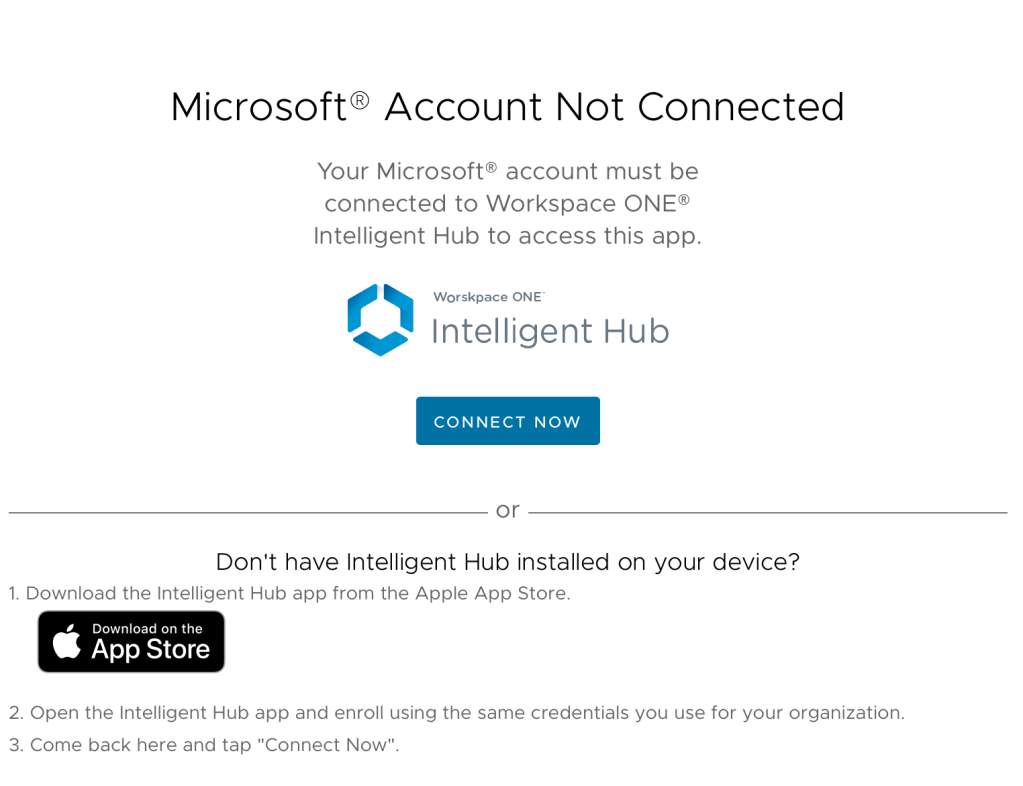
If a user doesn’t pre-register their mobile device, they will be prompted to register their device when appropriate conditional access rules are enabled. For example, the user attempts to open Microsoft 365 (Word) and an Entra ID conditional access rule is defined (see below) that they can only do this from a compliant device. The user experience for registering a iOS device with Entra ID (using the Authenticator) is shown as follows:

Android
The process to register Android devices is the same as Apple devices, but select the Android platform when creating a new Informational notification. Change the text as appropriate for Android devices.
Specify Link as the following for Android devices:
awagent://com.airwatch.androidagent?component=conditionalaccess&partnertype=microsoft
macOS
The process to register Apple Mac devices is the same as iPhone and iPad devices, but select the Mac platform when creating a new Informational notification. Change the text as appropriate for Apple Mac devices.
wsonehub://conditionalaccess?partner=microsoft
Registered devices in Entra ID
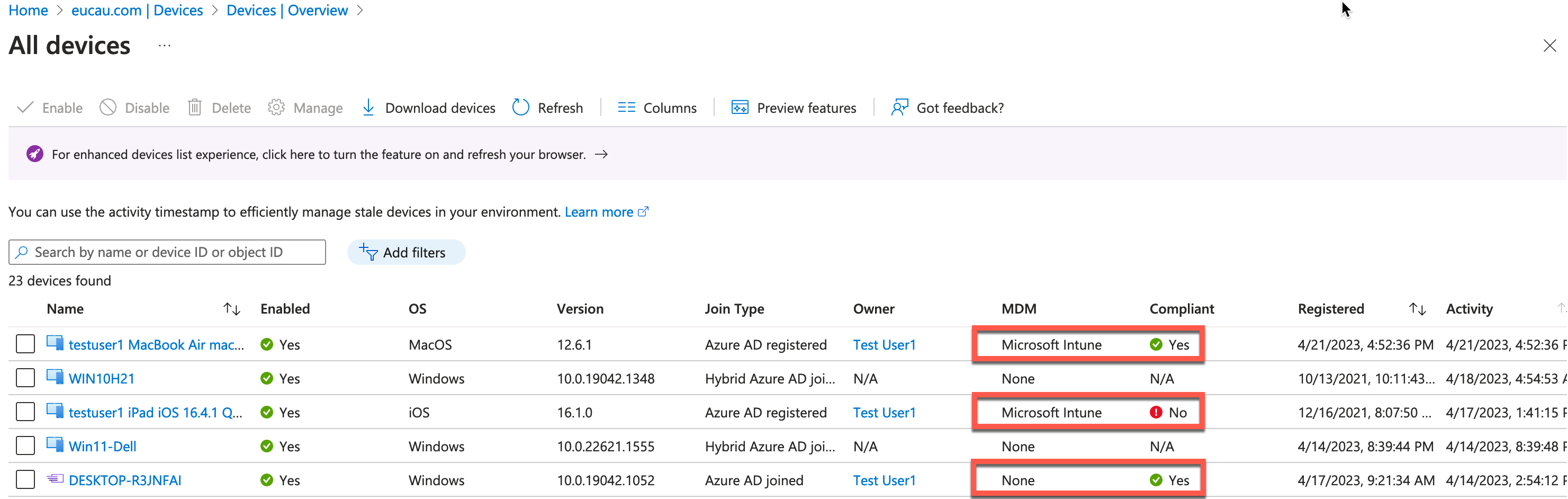
Registered devices are visible in Entra ID by logging into the Entra ID portal. Select Devices – See all devices. Then select Activity (sort by latest update as the most current). From the screen capture below from my lab, you can see a registered Mac, iPad and Windows 10 laptop and their Compliance status.
Creating your Entra ID Conditional Access Policy
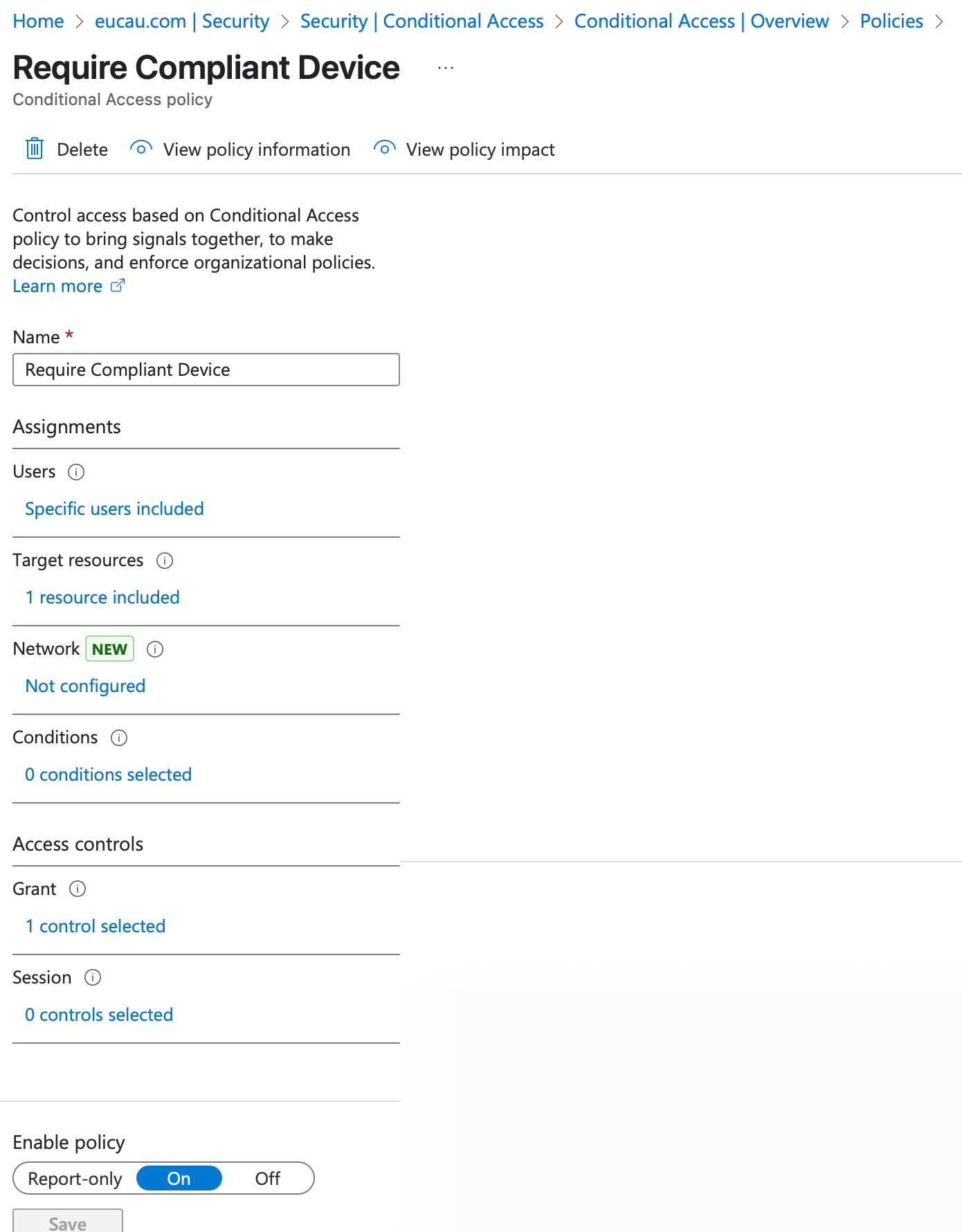
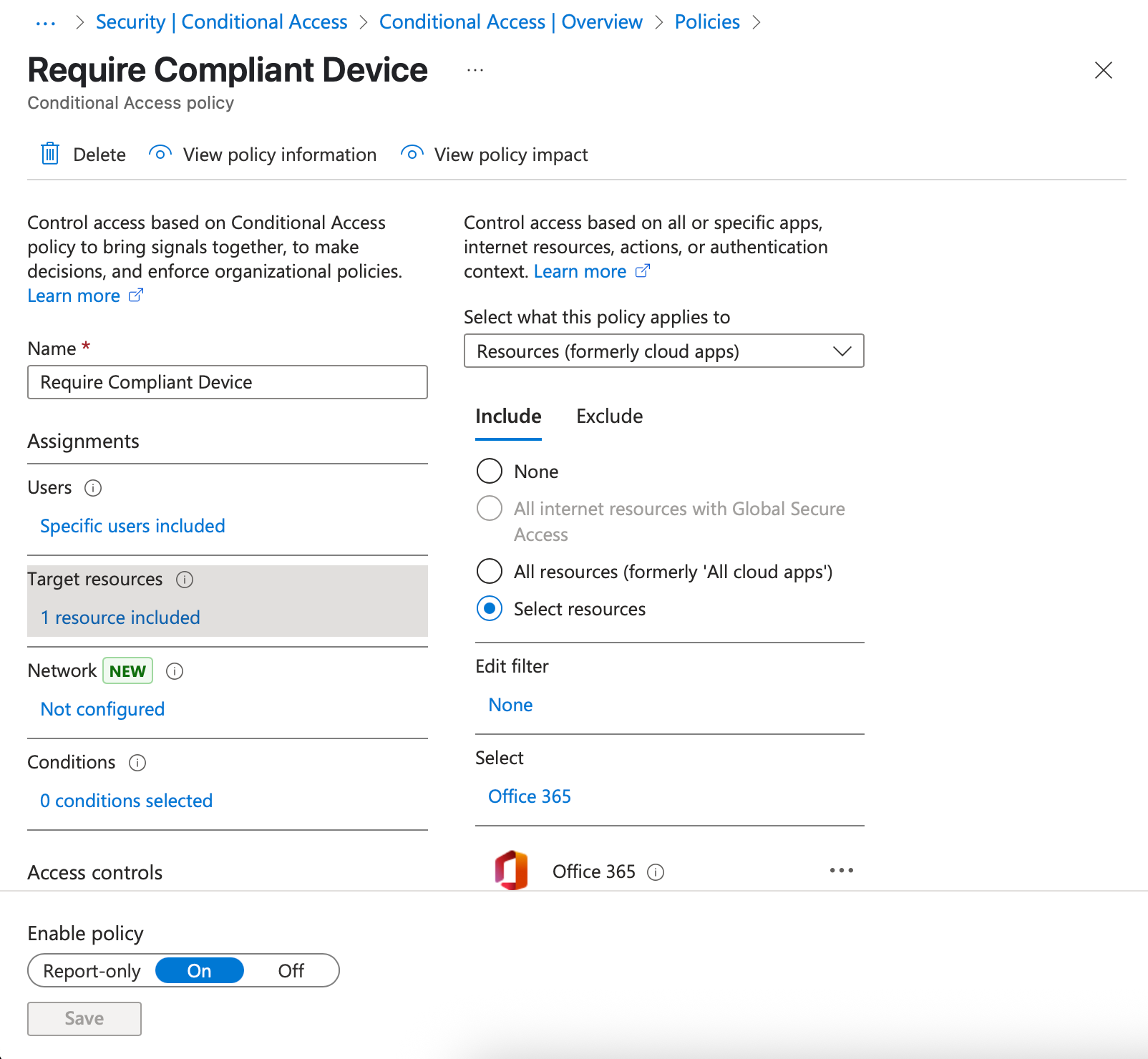
We’ll now create an Entra ID Conditional Access Policy to ensure that only compliant devices can access Office 365 (mobile applications):
- Logon to your Azure admin portal
- Select Entra ID – Security – Protect – Conditional Access
- Select Create New Policy
- Select a policy such as this example:

5. Select Review + create then Create
Device compliance status shown in Entra ID
Device compliance is shown in Workspace ONE UEM as follows:

Registered devices are visible in Entra ID by logging into the Entra ID portal. Select Devices – See all devices. Then select Activity (sort by latest update as the most current). From the screen capture below from my lab, you can see a registered Mac, iPad and Windows 10 laptop and their Compliance status.
User experience for non compliant devices
When a user attempts to open an Office mobile application and their device is compliant, the mobile application (such as Teams or Word) will open seamlessly.
When the device is not compliant, the user will be shown the following message from Azure:
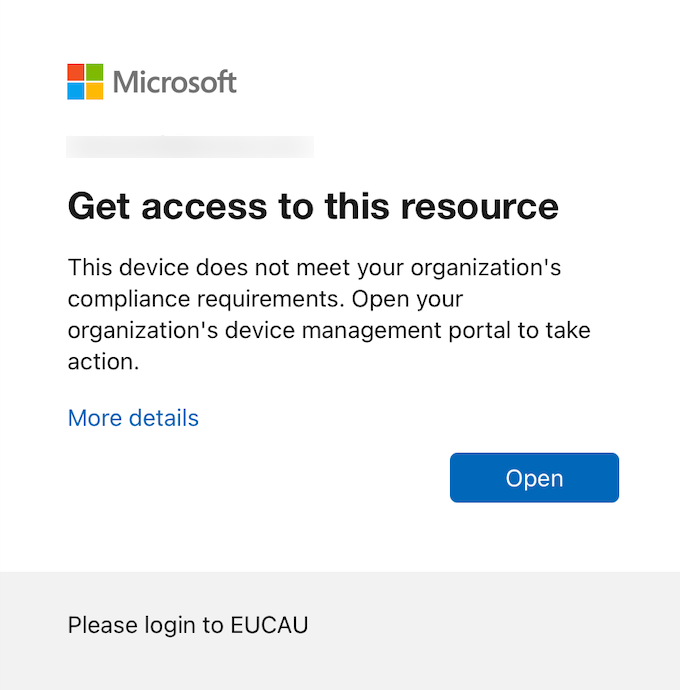
Once the device is compliant, they will then have seamless access into those Office mobile applications.
Workspace ONE Intelligence and Automation
In Patrick Zoeller’s blog he details how the Entra ID status of a device is now available within Workspace ONE Intelligence. This allows the administrator to create reports on which devices are registered within Entra ID. You can also setup an automation in Intelligence to send an alert to users to prompt them to register their device by launching the Microsoft Authenticator app.
Conclusion
That’s it! You’ve now integrated Workspace ONE UEM with Entra ID conditional access. If you have any questions check out the updated Workspace ONE Community discussion here.
Updates
- 21st March 2023 – Detailed registration URLs for iOS, iPadOS, Android and macOS including process to send alerts to users via Hub Services
- 15 March 2024 – Included link to Patrick Zoellers blog on Intelligence and automation
- 29 April 2024 – Changed branding (mostly) from Azure AD to Entra ID
- 30 June 2025 – Corrected official documentation link to Omnissa docs
- 8 July 2025 – Updated screen captures and re-tested process with 24.10 (Modstack)
 Many Miles Away
Hello, have you tried it with Windows? Because in the official VMware documentation it works only with Windows OOBE.
Yes, Windows OOBE is the only supported option at this time – https://docs.vmware.com/en/VMware-Workspace-ONE-UEM/services/Directory_Service_Integration/GUID-DirSvcUseComplianceDataInAzureConditionalAccessPolicies.html
Darryl – Any experience in setting up Android devices the same way as you did for the IOS? I am having issues with the Knox Samsung work profile and getting a profile created that will register with Azure…
No, maybe try some other devices and work profile vs work managed. I’ll try and test in the next week too.
I also have the problem with Android devices with work profile. On the Azure side, the device is not managed