
In August 2023, Workspace ONE UEM extended conditional access capabilities for Microsoft Entra ID (formerly Microsoft Azure Active Directory) with support for Shared Device Mode (SDM) for Android devices.
This integration was built specifically with frontline workers in mind. Until now, frontline customers could only enable conditional access on devices assigned to a single employee. However, the device registration process required the employee to manually register their device with Entra ID. Now Frontline workers can simply grab a device and start working without any manual setup.

This blog article details how to enable this new capability.
Requirements to use Microsoft Azure Conditional Access Policies on Shared Devices
As stated in the official documentation, the requirements to use Microsoft Azure Conditional Access Policies on Shared Devices are as follows:
- Workspace ONE UEM version 23.06 or later
- Workspace ONE Intelligent Hub version 23.07 or later
- Workspace ONE Launcher version 23.02 or later (from the Resource portal if it is not already seeded in your console)
Integrating Workspace ONE UEM with Entra ID
The following Omnissa Techzone tutorial provides all the instructions you need to integrate Workspace ONE UEM and Entra ID. A few things to point out when setting up this integration.
For Workspace ONE UEM shared SaaS environments, the AirWatch by VMware Application is all that you’ll need to enable in Azure AD. As noted in the article, generally you need to add the on-premises app only if you have a custom host name. This means you have a dedicated SaaS or on-premises. However, adding the app causes no harm to your setup. It also enables you to avoid the need to troubleshoot Azure enrollment errors when enrolling devices.
The MDM discovery URL and MDM Terms of Use URL are transposed between UEM and Azure AD (see below from my lab). Just so you’re aware!

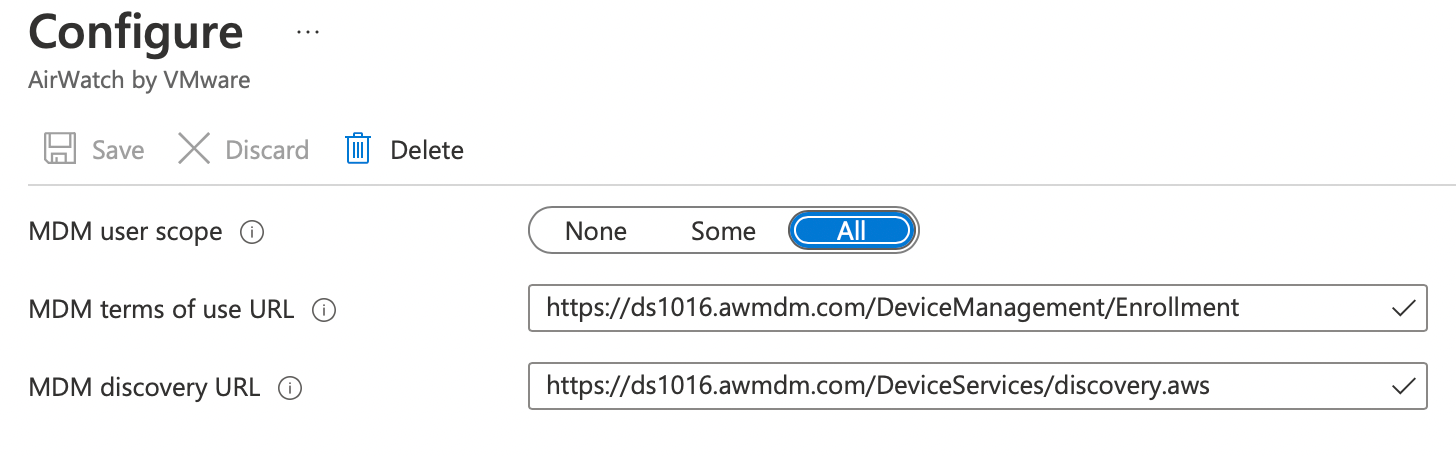
Below is a screen capture from my lab where I’ve highlighted the items I configured:

Whilst you’re in the Azure AD portal, you may wish to apply some branding of your tenant so that users are prompted with a personalised message when they enrol their device. Select Company Branding and edit the Default Locale as shown:

Integrating Workspace ONE and Entra ID Conditional Access
Next, you’ll need to follow the instructions in this blog article so that Workspace ONE UEM device posture information is synchronised to Entra ID, so it can be used as part Entra ID’s powerful Conditional Access capabilities.
I’d recommend you test with an Android device (register using the Microsoft Authenticator app) to ensure device compliance is appropriately synced to Entra ID.
Enabling Shared Device Mode (SDM)
In the Workspace ONE UEM console, navigate to Settings – Devices & Users – Android – Intelligent Hub Settings and turn on Register as Shared Device with Azure for Conditional Access as shown:

Login to your Microsoft Azure admin console and click on Microsoft Entra ID, and copy the (long) Tenant ID as shown in this example and copy this to an application like Notepad or Textedit (we’ll need this information later).

Next add Microsoft Authenticator as a Public App (from Google Play) by selecting Resources – Apps – Native – Public.
Click Add application – select platform as Android – search for Microsoft Authenticator and click Next. Select the Microsoft Authenticator app and then click Approve as follows.

Click Approve again – click Keep approved when app requests new permissions and click Done.

Click Save & Assign
Ensure the app is assigned to devices targeted for Shared Device Mode.
Next select the App Delivery Method as Auto.

Click Application Configuration.
Within the Application Configuration tab and apply following configuration as follows:
- Shared Device Mode: Enable
- Prefill UPN in Shared Device Mode: Leave this field blank.
- Shared Device Mode Tenant Identifier: enter your Microsoft Tenant ID
- Shared Device Mode Registration token: Enter the lookup value {SharedDeviceRegistrationToken}
For example, in my lab this is configured as follows:

Click Create. Click Save. Review the list of devices which will receive the Microsoft Authenticator App and click Publish.
What happens on your Android device?
New device setup
As detailed in the official documentation, if you’re enrolling a new device, during enrollment Microsoft Authenticator is launched automatically after it is installed. It will wait to receive the registration token (this may take up to one minute). Once the token is received, registration completes and the device compliance status is relayed to Entra ID. Once the process is complete, and the device is marked as Shared and Compliant in Azure, users are able to login to Microsoft apps.
Existing devices
On devices that are already enrolled, Microsoft Authenticator will be launched for SDM registration after the configuration steps are completed. There are two different scenarios based on the home screen launcher that is used:
- Workspace ONE UEM Launcher with Check-in/Check-out enabled: Microsoft Authenticator launches automatically to complete the registration after the device is checked in (user signs out) so that the user is not disrupted. To setup CICO, see this blog article.
- Workspace ONE UEM Launcher in Single App Mode: This scenario is primarily for the use of custom launchers as the primary end user interface. Microsoft Authenticator launches automatically after receiving the configuration to perform the registration.
A video of the user experience is shown here:
Once SDM is activated via the Launcher and Microsoft Authenticator, the device’s registration and compliance is shown in Entra ID as follows:

You’ve now successfully enabled Shared Device Mode (SDM) with Workspace ONE UEM and Entra ID!
 Many Miles Away